



Before setting up your MarpaMail account in Outlook, review the MarpaMail Email Server Settings article to confirm the correct server name, ports, and security settings.
Read: MarpaMail Email Server Settings
Once you have those settings, follow the steps below to configure your account in Outlook using IMAP.
Open Outlook and Start Account Setup
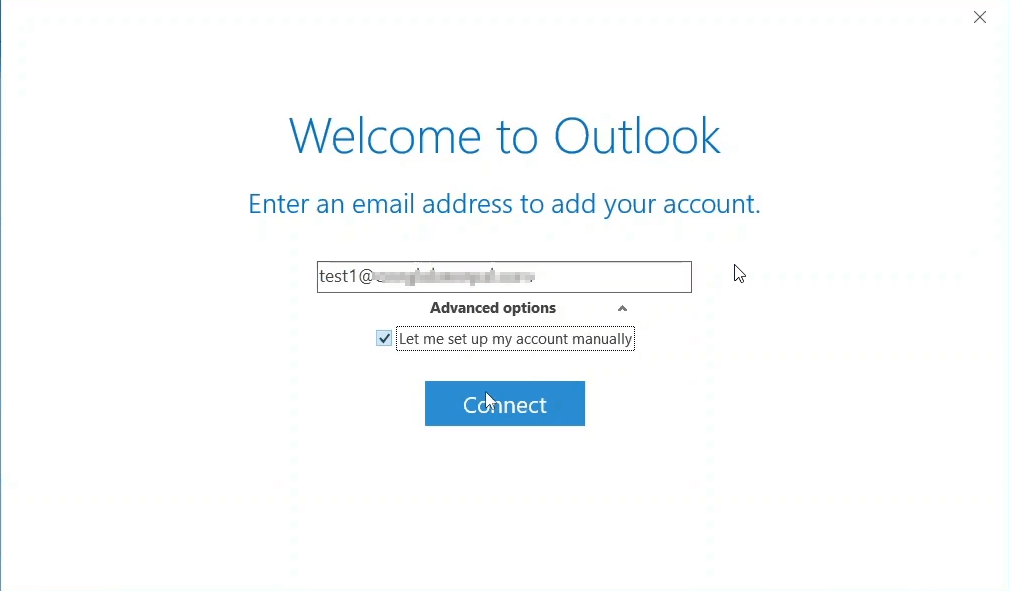
Open Outlook on your computer. When the account setup window appears, enter your MarpaMail email address.
Expand Advanced options and select Let me set up my account manually. Then select Connect.
Select IMAP as the Account Type
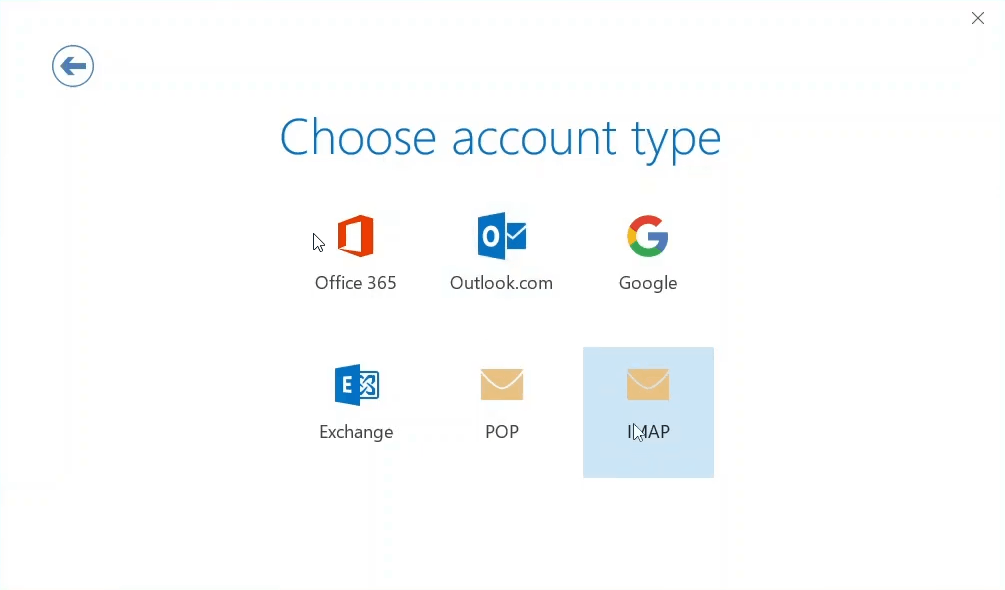
On the Choose account type screen, select IMAP.
IMAP keeps your messages synchronized with the MarpaMail server, making it the recommended option when you want to access the same mailbox from multiple devices.
Enter the MarpaMail Server Settings
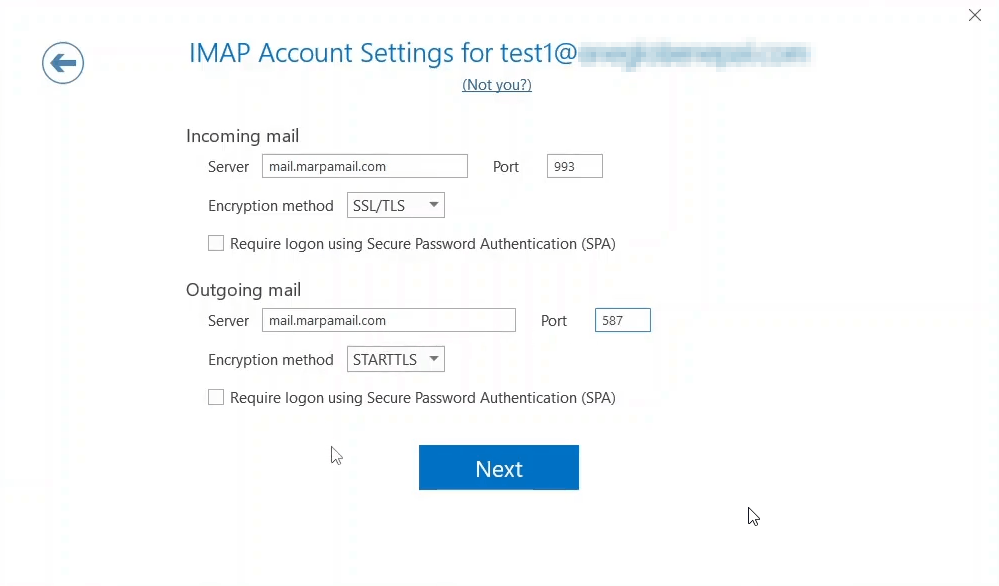
Outlook will display the IMAP Account Settings screen. Enter the following settings:
Incoming mail
- Server:
mail.marpamail.com - Port:
993 - Encryption method:
SSL/TLS
Outgoing mail
- Server:
mail.marpamail.com - Port:
587 - Encryption method:
STARTTLS
Leave Require logon using Secure Password Authentication (SPA) unchecked.
After entering the settings, select Next.
Enter Your MarpaMail Password
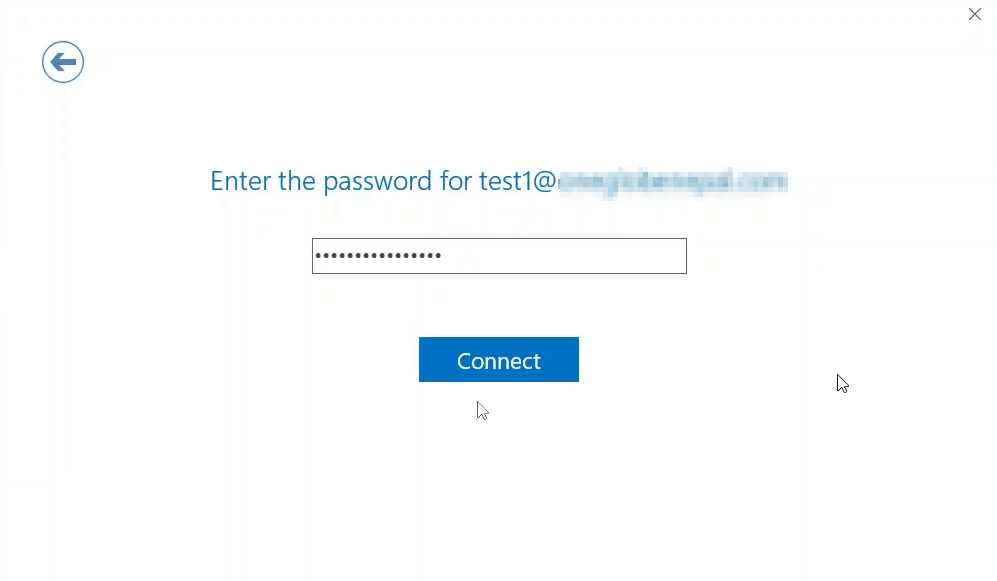
Enter the password for your MarpaMail email account.
Select Connect to allow Outlook to verify the account settings and connect to the MarpaMail mail server.
Complete the Outlook Setup
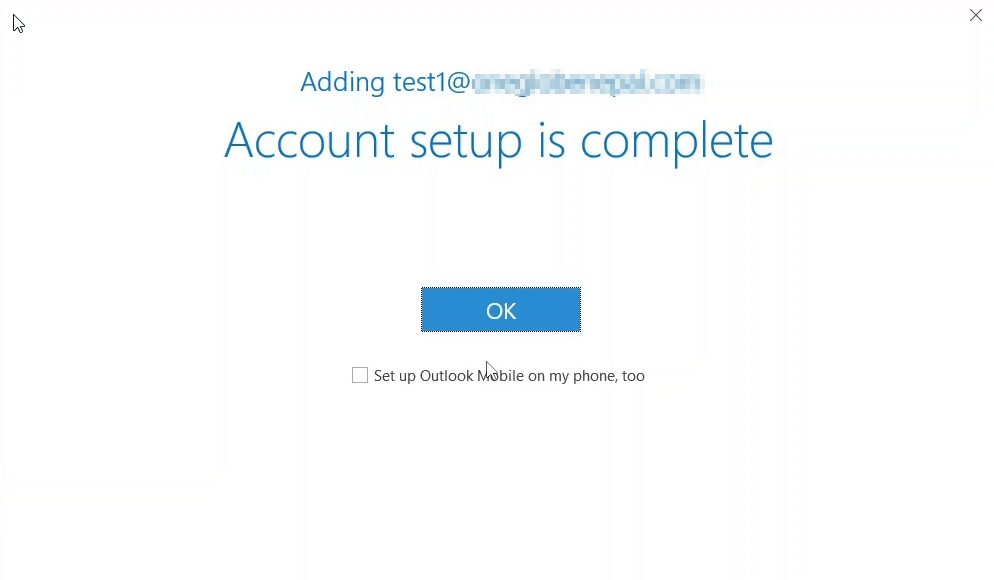
If the server settings and password are correct, Outlook will display Account setup is complete.
Select OK to finish the setup.
Your MarpaMail account is now configured in Outlook and ready to send and receive email.
Your MarpaMail Account Is Ready
You can now use Outlook to manage your MarpaMail messages. Incoming email will be synchronized through IMAP, while outgoing messages will be sent through SMTP.
For other email clients, use the same MarpaMail server settings and security requirements described in the MarpaMail Email Server Settings article.
Next Step
Your MarpaMail account is now ready to use in Outlook. If you use another device or email application, continue with the appropriate setup guide:
How to Set Up MarpaMail in Apple Mail
How to Set Up MarpaMail in Thunderbird
How to Set Up MarpaMail on iPhone & iPad
How to Set Up MarpaMail on Android