


You can set up your MarpaMail account on Android using the Gmail app and the IMAP option.
Before you start: Keep your MarpaMail email address and password ready.
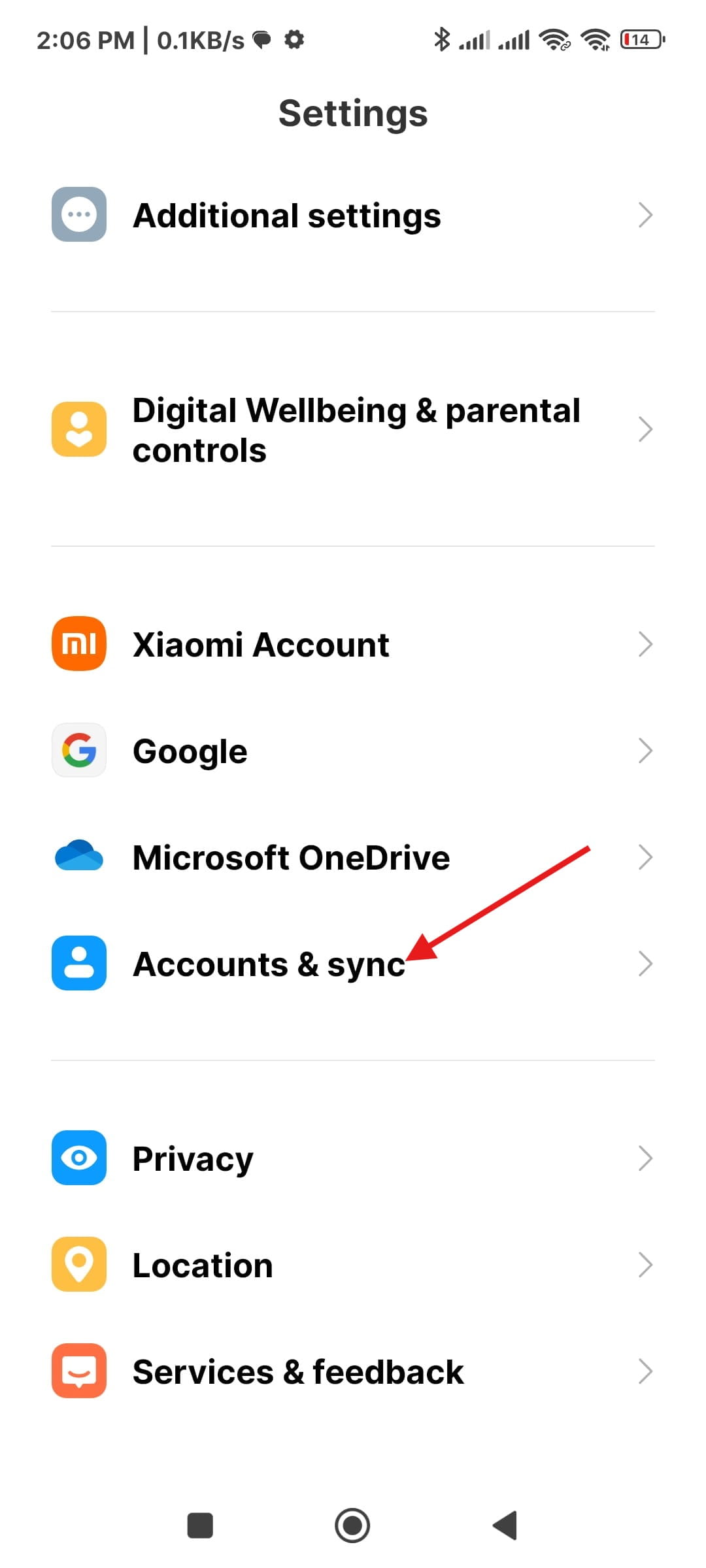
Open Accounts & sync
Open your phone's Settings and select Accounts & sync.
Tap Add account
In Accounts & sync, tap Add account.
Select Personal (IMAP)
From the account type list, select Personal (IMAP)
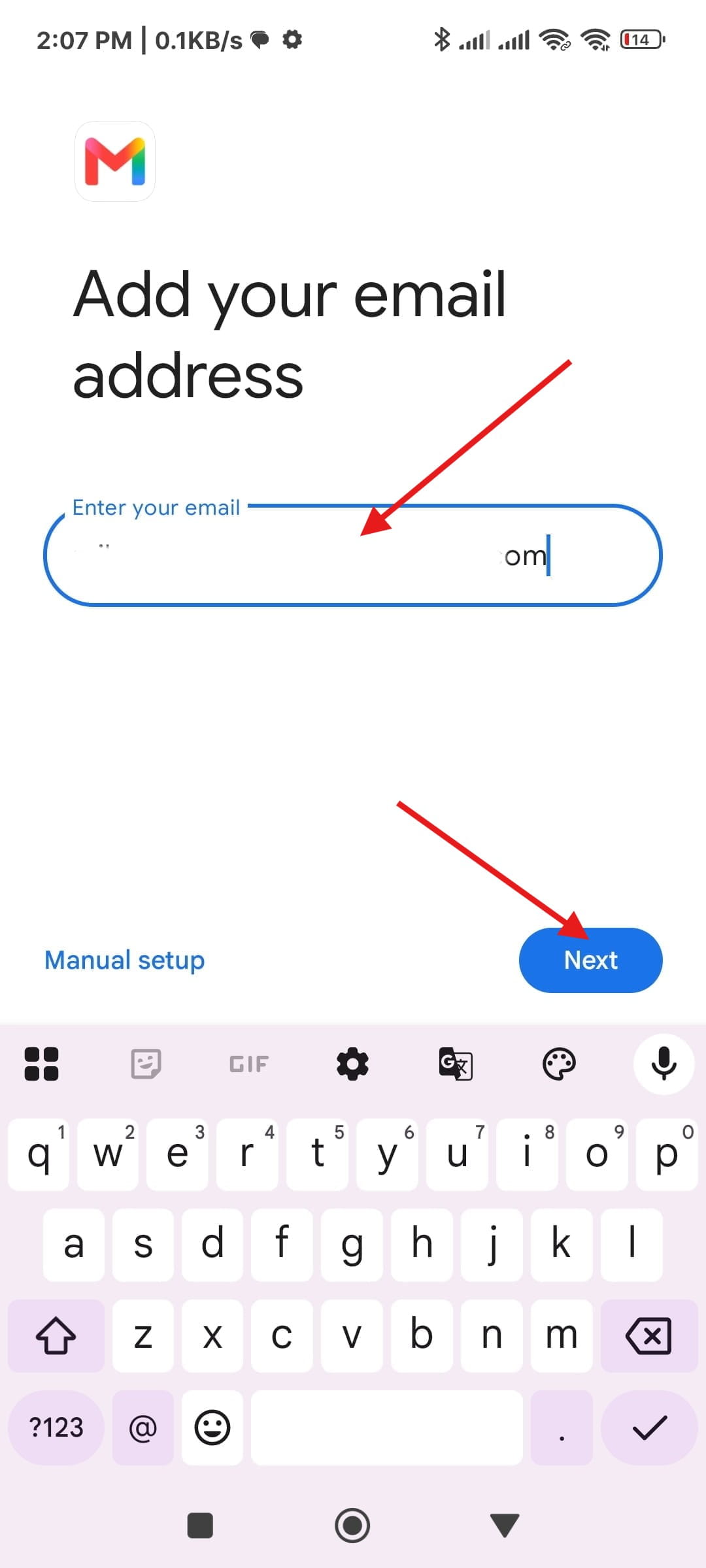
Enter Your Email Address
Enter your full MarpaMail email address, then tap Next.
Enter Incoming Server Settings
Enter the following details:
Username: Your full MarpaMail email address
Password: Your MarpaMail password
Server:
mail.marpamail.com
Enter Outgoing Server Settings
Enter:
Require signin: Enabled
Username: Your full MarpaMail email address
Password: Your MarpaMail password
SMTP server:
mail.marpamail.com
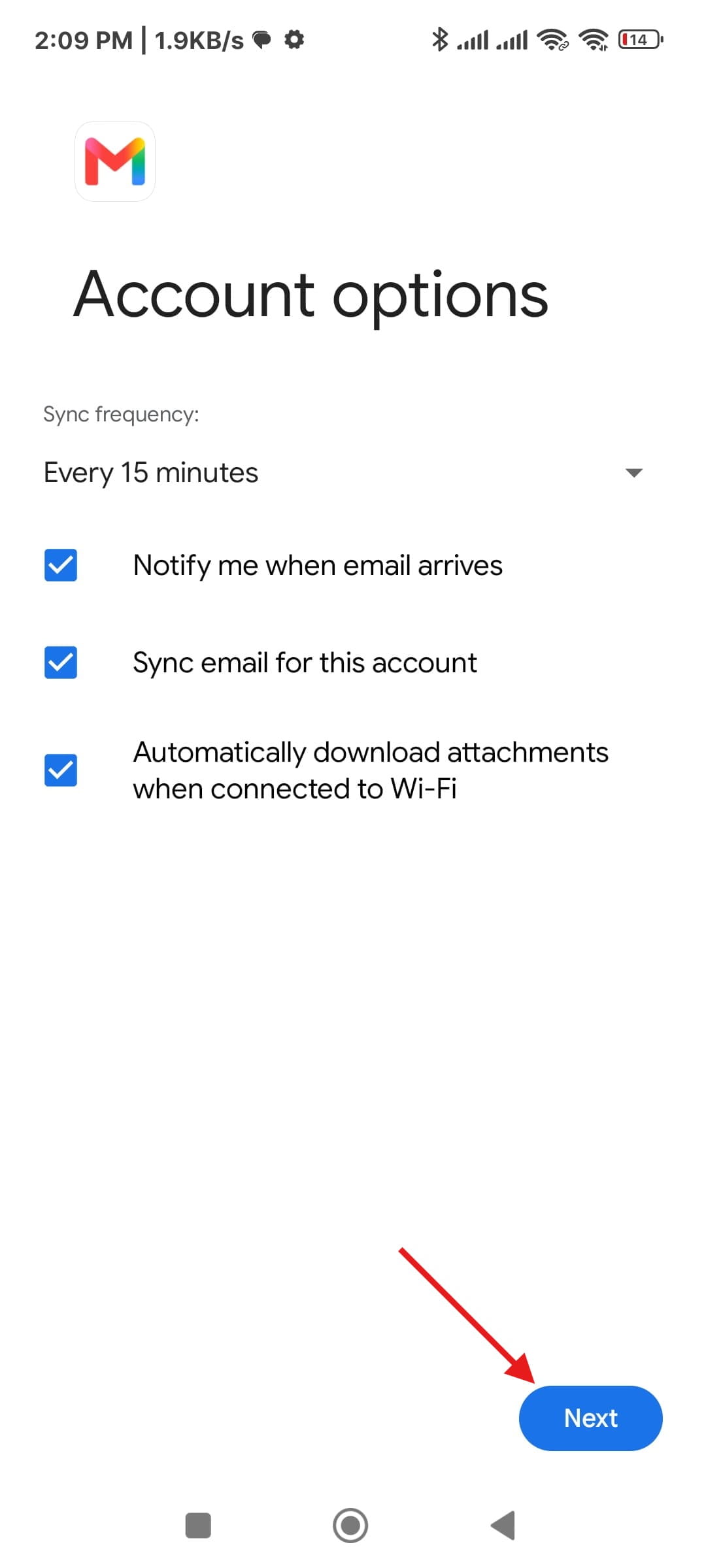
Finish Setup
Your account will be added successfully.
Enter your name if required. This name will be displayed on emails you send.
Tap Next.

Check Your Inbox
Open Gmail. Your MarpaMail account should now appear, and you can send and receive emails.
Send a test email to confirm that everything is working correctly.